
User-Defined Tools
Write and run your own simple tools from the Galaxy interface — no server access, no admin installation, no Tool Shed.
On this page
Beta feature available on UseGalaxy.org — enabled per account
User-Defined Tools (UDTs) let regular Galaxy users — and connected AI agents — write and run their own containerized YAML tools directly in Galaxy, with no server access, no admin installation, and no waiting on the Tool Shed. If you need a custom Python/shell step, a format normalizer, or a Biocontainer tool that isn’t installed yet, UDTs run it as a tracked Galaxy job in your history and workflows.
Request beta access on UseGalaxy.org
On UseGalaxy.org (Galaxy Main), UDT access is turned on per account:
- Open udt-signup.galaxyproject.org (optional: sign in with ORCID first for faster review).
- Enter your UseGalaxy.org account email/username and a sentence or two describing what you plan to build or run.
- Once approved, Custom Tools (wrench icon) appears in your Galaxy Activity Bar — and any connected AI agent or Orbit can author and run UDTs on your behalf (see an end-to-end agent run).
- Ask questions, report rough edges, or share working
GalaxyUserToolYAMLs in GitHub Discussions (Agents & UDTs).
(Working on a different Galaxy server? Ask that server’s administrators — see Enabling User-Defined Tools below.)
UDTs are meant to fill gaps, not to replace published tools. Whenever a Tool Shed tool already does what you need, prefer it — analyses built on published tools are easier for others to share, rerun, and cite.
What is a User-Defined Tool?
A UDT is a small tool definition, written in YAML, that you create and save from within Galaxy itself. It behaves like any other tool on the Tools panel — it has inputs, produces output datasets, and can be added to workflows — but it is created, owned, and (by default) only visible to you.
Here’s a complete example: a tool that concatenates a set of input datasets.
class: GalaxyUserTool
id: cat_user_defined
version: "0.1"
name: Concatenate Files
description: tail-to-head
container: busybox
shell_command: |
  cat $(inputs.datasets.map((input) => input.path).join(' ')) > output.txt
inputs:
  - name: datasets
    multiple: true
    type: data
outputs:
  - name: output1
    type: data
    format_source: datasets
    from_work_dir: output.txt
If you’ve written a standard Galaxy tool in XML before, this will look familiar — it’s the same basic shape (a name, a description, inputs, outputs, and a command to run) with a few important differences described below.
How is this different from a regular Galaxy tool?
Regular Galaxy tools are written in XML and use the Cheetah templating language to build the command that gets executed. Cheetah has broad access to the Galaxy database and the server’s filesystem — which is fine when an administrator is the one writing and reviewing the tool, but is not something Galaxy can safely hand to every user.
To make it safe for any user to author and run their own tools, UDTs use a deliberately restricted format:
- Tools must declare
class: GalaxyUserTooland are written in YAML rather than XML. - Every UDT must run inside a container, specified with the
containerkey. There is no “run directly on the host” option. - Instead of Cheetah, the command (
shell_command) is built using sandboxed JavaScript expressions inside$( ... ). These expressions can only see the tool’s declared inputs — they have no access to the Galaxy database, the filesystem outside the job’s working directory, reference data, or dataset metadata files (such as BAM indexes). - The set of supported input types is intentionally smaller than the full XML tool vocabulary: booleans, integers, floats, text, colors, select lists, datasets, and dataset collections, plus the structural building blocks
conditional,repeat, andsection. Anything outside that set is rejected when the tool is saved.
In short: a UDT can do most of what a simple “chain a couple of command-line tools together” task needs, in exchange for giving up direct system access.
Creating a tool
Once the feature is enabled on your Galaxy instance (see below), you can create a UDT from the Tools panel in the Galaxy interface, which opens an editor where you write the tool definition and save it. Saved tools appear in your own tool list and can be used in histories and workflows just like any other tool.
The Custom Tools activity
Once User-Defined Tools are enabled for your account, a Custom Tools entry (wrench icon) appears in the Activities panel on the left side of the Galaxy interface. This is where you go both to write new UDTs and to find the ones you’ve already written.
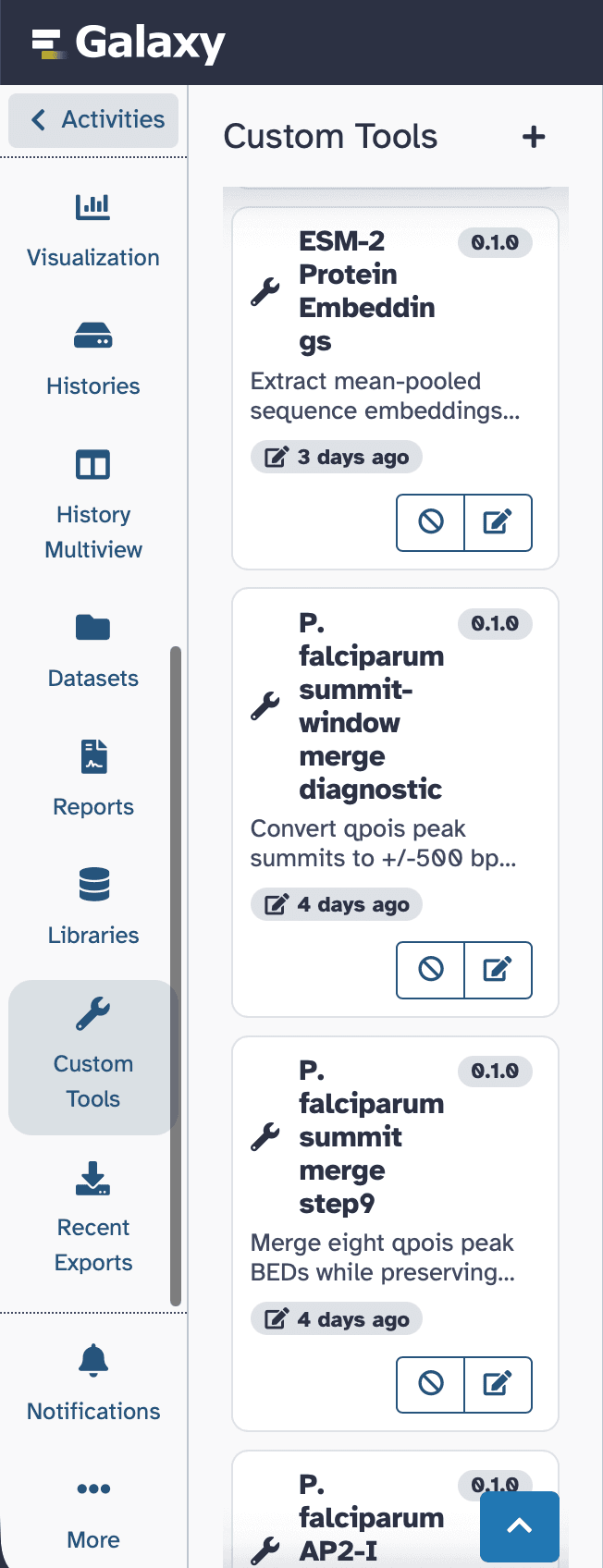
Clicking Custom Tools opens a panel listing every UDT you’ve created, each with its name, version, description, and when it was last edited. From here you can:
- Click the + at the top of the panel to open the editor and write a new tool from scratch.
- Click the edit (pencil) icon on any listed tool to open it in the editor and revise its definition.
- Click the disable (circle-slash) icon to disable a tool without deleting it.
More examples
The concatenation tool above is about as simple as a UDT gets. The two below are closer to the size of a real analysis step — several inputs, several outputs, and real work to do. Both keep shell_command to a short invocation and put the actual script in configfiles, which is the pattern to reach for once the logic outgrows a one-liner: Galaxy writes each config file into the job’s working directory before running the command. Click a summary line to expand the full tool definition.
Normalize sequence names in a GFF/GTF file, with a report
This tool rewrites the sequence names (column 1) of a GFF/GTF annotation using a two-column mapping file, leaves names on an “ignore” list untouched, and fails the job if it meets a name it wasn’t told about. It also writes a short TSV report of what it did. The logic is a Python script, held in configfiles and called by shell_command with the input paths as arguments.
class: GalaxyUserTool
id: gxf-seqname-normalizer
name: Normalize GXF sequence names
version: 0.2.0
description: rename sequences in a GFF/GTF file from a mapping table
container: python:3.11-slim
shell_command: python normalize.py '$(inputs.annotation.path)' '$(inputs.mapping.path)'
  '$(inputs.ignore.path)' normalized.gxf report.tsv
configfiles:
  - filename: normalize.py
    content: |
      import sys
      from collections import Counter

      ann_path, map_path, ign_path, out_path, rep_path = sys.argv[1:6]

      mapping = {}
      with open(map_path, encoding="utf-8") as fh:
          for line in fh:
              if line.startswith("#") or not line.strip():
                  continue
              parts = line.rstrip("\n").split("\t")
              if len(parts) >= 2:
                  mapping[parts[0]] = parts[1]

      ignore = set()
      with open(ign_path, encoding="utf-8") as fh:
          for line in fh:
              if line.startswith("#") or not line.strip():
                  continue
              ignore.add(line.strip().split("\t")[0])

      counts = Counter()
      unknown = set()

      with open(ann_path, encoding="utf-8", errors="replace") as inp, open(
          out_path, "w", encoding="utf-8"
      ) as out:
          for line in inp:
              if line.startswith("#") or not line.strip():
                  out.write(line)
                  continue
              parts = line.rstrip("\n").split("\t")
              seq = parts[0]
              if seq in mapping:
                  parts[0] = mapping[seq]
                  counts["renamed"] += 1
                  out.write("\t".join(parts) + "\n")
              elif seq in ignore:
                  counts["ignored"] += 1
                  out.write(line)
              else:
                  counts["unknown"] += 1
                  unknown.add(seq)

      with open(rep_path, "w", encoding="utf-8") as rep:
          rep.write("metric\tvalue\n")
          for metric in ("renamed", "ignored", "unknown"):
              rep.write(f"{metric}\t{counts[metric]}\n")

      if unknown:
          sys.exit("Unknown sequence names: " + ", ".join(sorted(unknown)))
inputs:
  - name: annotation
    label: Annotation to rewrite
    type: data
    format:
      - gff
      - gff3
      - gtf
  - name: mapping
    label: Two-column old-name/new-name mapping
    type: data
    format:
      - tabular
  - name: ignore
    label: Sequence names to leave untouched
    type: data
    format:
      - tabular
outputs:
  - name: normalized
    label: $(inputs.annotation.element_identifier) (renamed)
    type: data
    format_source: annotation
    from_work_dir: normalized.gxf
  - name: report
    label: $(inputs.annotation.element_identifier) (rename report)
    type: data
    format: tabular
    from_work_dir: report.tsv
Run NucleoATAC and expose its outputs
This tool wraps NucleoATAC, a real bioinformatics package, running from a Biocontainer image rather than a generic base image. It shows a multi-step shell script, a CPU request declared as a resource requirement and passed through to the program as $GALAXY_SLOTS, inputs restricted to specific formats, several labeled outputs, and a Markdown help block describing the tool to whoever runs it. NucleoATAC leaves out a result file when it has nothing to report, so the script creates an empty one in that case and every declared output is always claimed.
class: GalaxyUserTool
id: nucleoatac-run
name: NucleoATAC
version: 0.5.0
description: call nucleosome positions and occupancy from ATAC-seq data
container: quay.io/biocontainers/nucleoatac:0.3.4--py27hf85d69d_6
requirements:
  - type: resource
    cores_min: 4
shell_command: sh run.sh '$(inputs.bam.path)' '$(inputs.reference.path)' '$(inputs.regions.path)'
configfiles:
  - filename: run.sh
    content: |
      set -eu
      bam="$1"
      reference="$2"
      regions="$3"

      cp "$bam" reads.bam
      cp "$reference" ref.fa
      cp "$regions" regions.bed
      python -c "import pysam; pysam.index('reads.bam'); pysam.faidx('ref.fa')"

      nucleoatac run --bed regions.bed --bam reads.bam --fasta ref.fa --out result --cores "$GALAXY_SLOTS"

      # NucleoATAC omits a result file when it has nothing to report. Unpack
      # whatever is there and leave an empty file for the rest, so that a
      # no-call is distinguishable from a failed job.
      for name in occ occpeaks nucpos nucleoatac_signal nucmap_combined nfrpos; do
          : > "$name.out"
          for packed in "result.$name.bed.gz" "result.$name.bedgraph.gz"; do
              if [ -s "$packed" ]; then
                  gunzip -c "$packed" > "$name.out"
              fi
          done
      done
inputs:
  - name: bam
    label: Coordinate-sorted ATAC BAM
    type: data
    format:
      - bam
  - name: reference
    label: Reference FASTA with matching sequence names
    type: data
    format:
      - fasta
  - name: regions
    label: Regions to analyze
    type: data
    format:
      - bed
outputs:
  - name: occ
    label: $(inputs.bam.element_identifier) occupancy
    type: data
    format: bedgraph
    from_work_dir: occ.out
  - name: occpeaks
    label: $(inputs.bam.element_identifier) occupancy peaks
    type: data
    format: bed
    from_work_dir: occpeaks.out
  - name: nucpos
    label: $(inputs.bam.element_identifier) nucleosome positions
    type: data
    format: bed
    from_work_dir: nucpos.out
  - name: nucleoatac_signal
    label: $(inputs.bam.element_identifier) nucleosome signal
    type: data
    format: bedgraph
    from_work_dir: nucleoatac_signal.out
  - name: nucmap_combined
    label: $(inputs.bam.element_identifier) combined nucleosome map
    type: data
    format: bed
    from_work_dir: nucmap_combined.out
  - name: nfrpos
    label: $(inputs.bam.element_identifier) NFR positions
    type: data
    format: bed
    from_work_dir: nfrpos.out
help:
  format: markdown
  content: |
    Runs NucleoATAC on a coordinate-sorted ATAC BAM, a reference FASTA and a
    regions BED, and reports nucleosome occupancy, occupancy peaks,
    nucleosome positions, nucleosome signal, a combined nucleosome map and
    nucleosome-free-region positions.

    The BAM, FASTA and BED must use the same sequence names. An output with
    nothing to report comes back as an empty dataset rather than failing the
    job.
Enabling User-Defined Tools (for admins)
UDTs are off by default. A Galaxy administrator needs to:
- Set
enable_beta_tool_formats: truein the Galaxy configuration. - Create a role of type Custom Tool Execution (and, if users should also be able to author new tools, Custom Tool Creation) in the admin interface.
- Assign that role to the users or groups who should be allowed to use the feature.
Because this is a beta feature and the security model is still being hardened, we recommend limiting it to trusted users for now.
Sharing tools
UDTs are private to the user who created them. There is no way to share a single tool with another user directly — sharing happens by way of a workflow that carries the tool definition with it.
A workflow that uses a UDT embeds the whole tool definition rather than a reference to it, so the workflow is self-contained. In a Format 2 workflow (.gxwf.yml) the definition sits inline under the step’s run key:
class: GalaxyWorkflow
inputs:
  text_file:
    type: data
outputs:
  without_comments:
    outputSource: remove_comments/output_file
steps:
  remove_comments:
    run:
      class: GalaxyUserTool
      id: remove_comments
      version: 0.1.0
      name: Remove Comment Lines
      container: quay.io/biocontainers/grep:3.4--hf43ccf4_4
      shell_command: grep -v '^#' '$(inputs.input_file.path)' > output.txt || test "$?" = 1
      inputs:
        - name: input_file
          type: data
          format: txt
      outputs:
        - name: output_file
          type: data
          format_source: input_file
          from_work_dir: output.txt
    in:
      input_file: text_file
Galaxy’s .ga export works the same way, carrying the definition in the step’s tool_representation field.
When someone imports that workflow, Galaxy creates a private copy of the tool in their account. Two things to keep in mind:
- The importing user needs the Custom Tool Execution role on that instance. They do not need tool-creation permission, and they don’t need to have written the tool — but without the execution role the workflow’s UDT steps won’t run for them.
- They get a copy, not a link back to your tool. Editing your original afterwards has no effect on their copy, and vice versa.
An administrator can also export a UDT to disk and load it like a regular tool, making it available instance-wide.
Security considerations
UDTs carry similar risks to Interactive Tools — both let users run their own code inside containers on your infrastructure. If you’re an admin enabling this feature, we strongly recommend reading the guidance on securing Interactive Tools and configuring your job runner to isolate mounts and restrict network access for these jobs, as shown in this example Pulsar configuration. For more information on the security concerns and ways to address them, see the Total Perspective Vantage (TPV) documentation.
Current limitations
UDTs are a beta feature and still evolving. At the moment:
- There’s no access to Galaxy’s reference data.
- There’s no access to dataset metadata or metadata files (such as BAM indexes).
- There’s no access to a tool’s
extra_filesdirectory. - Test cases can be declared but not run. A tool may carry a
tests:block using the same syntax as other YAML-format Galaxy tools, and Galaxy stores and returns it, but there is no “run this tool’s tests” action in the interface — a tool held in the database has no tool directory, so file-based test inputs can’t be resolved. Declared tests only become executable once the tool is exported to disk and loaded like a regular tool. Until then, check a tool by running it on inputs whose answer you already know and comparing against the same command run outside Galaxy — worth doing once per version, since a version bump usually means a new container image too.
Learn more
For the full technical reference, including the complete list of supported input types and fields, the expression syntax, and how to use a UDT in a workflow or through the API, see Authoring User-Defined Tools in the Galaxy developer documentation — the same reference the tool editor’s help panel shows.
For the administrator’s side — enabling the feature, routing UDT jobs to an isolated destination with job_conf.yml or TPV, and how stored tools behave when the schema changes between Galaxy releases — see User-Defined Tools (Beta) in the Galaxy administration documentation.